Frequently Asked Questions
Frequently Asked Questions
Find answers to frequently asked questions here:
Where is my data stored?
Content (documentation, procedures, inspection sheets, etc.) is stored in a storage space, configurable per project, by default on a Minio instance.
Business data (users, contracts, equipment, etc.) is stored in PostgreSQL databases.
“Local” data for offline operation of mobile applications is stored in an encrypted SQLITE database.
To learn more: /fr/tech-doc/architecture
What is the log retention period?
The duration is configurable during deployment; however, the default configuration retains infrastructure logs for 30 days and security logs for 365 days.
To learn more: /fr/tech-doc/global/logs
Troubleshooting
Find here error messages that may occur and how to resolve them:
Issues on the first page
You are not connected to the server
On the first page, the “Login to your account” button may be unclickable and a red flag may appear:
“You are not connected to the server”
This message means that the application is not connected to the reference API.
Let’s go into the technical details to fix this issue; it can have several causes:
-
You are disconnected from the network that provides the reference API URL
Scan your environment QR code; the error should disappear. -
Your tablet is connected to a non-transparent gateway or a network filtered by a non-transparent proxy
Contact your system administrator to check the accessibility of the API URL.
To perform a more explicit test, open your browser and access the API page.
Example:
https://mc-api.maintenance-coach.com/ping
If you get a response like the one below, your gateway or proxy correctly resolves the address and returns data. Contact your administrator if the issue is not resolved.
{
“status”: “UP”,
“version”: “9.18.7”
}
Cookie not found
This error is displayed by Keycloak right after the user has authenticated. This issue may occur when:
- your tablet is not up to date: check its date, time, and time zone
- your browser is not up to date: update it from the Play Store
Loop when clicking “Login to your account”
If the “Login to your account” button loops on the first page even after waiting a few seconds, please check that the last user logged in on the tablet has a contract (their access token is likely still available).
Contact your administrator to delete the session as well as the offline token of this user
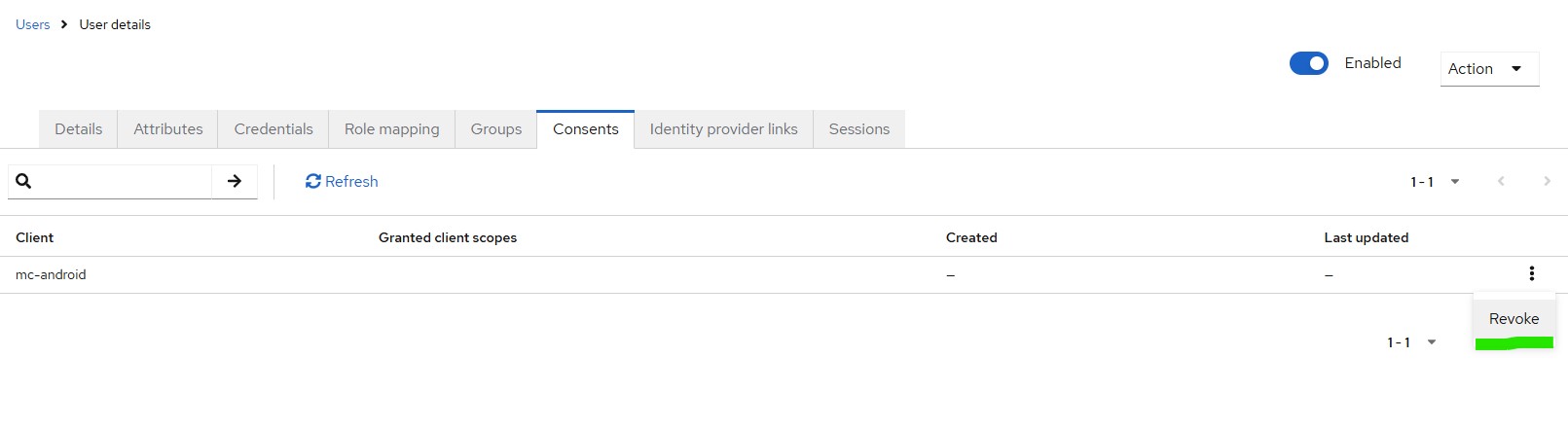
An authentication error?
After authenticating on the Keycloak login page, I get an error “2007: no token for the user or the client”
This error is generated by Keycloak; it may occur if your tablet is not set to the same time or time zone as your server. You need to go to your tablet settings and reconfigure the time and timezone, then restart your tablet.
It may also occur if your user account does not have the “offline_access” role in Keycloak. You must add it manually from the Keycloak interface, in the user profile, under the “Role mapping” tab.
A user not recognized even after a successful password reset?
Go back to the page before login (press the back button, physical or virtual).
Scan your environment QR code (the installation file may not point to the correct environment).
Here is our production one:
.png)
Unable to access the authentication page
After clicking “Login to your account”, an error may occur:
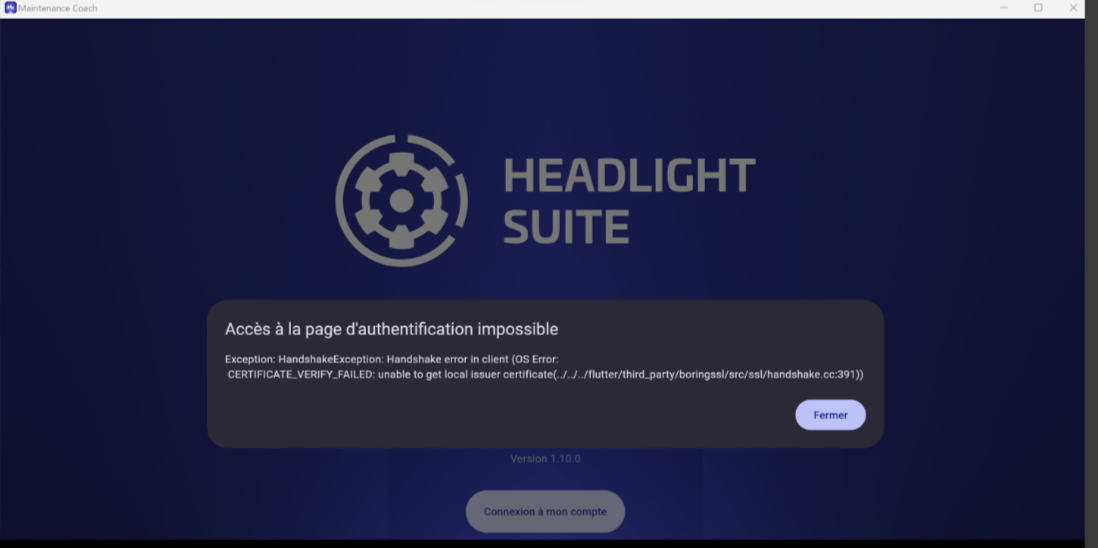
Exception: handshakeException: handshake error in client (OS Error: CERTIFICATE_VERIFY_FAILED: unable to get local issuer certificate (…/…/…/flutter/third_party/boringssl/src/ssl/handshake.cc:391))
This error comes from an unsuccessful SSL handshake. In simple terms, your tablet does not have secure access to Keycloak.
Let’s go into the technical details to fix this issue; it can have several causes:
-
You have an environment specifically linked to a private certificate
-
You do not have the Root Certificate available in your system store (Android) or computer store (Windows tablets or Windows)
In both cases, the testing and remediation procedure is as follows:
Android
Go to the following location:
Settings > Security and privacy > Other security settings > View security certificates
And check that your root certificate is present and not expired.
Remediation: import the root certificate (if it is already known, an error message will appear to prevent conflicts/duplicates).
Example for our production environment, the root certificate is isrgx1.cer.
With this certificate, add it if necessary.
Windows / Surface Windows
In your search bar, search for “Manage computer certificates”
Access to this store requires a privileged account; please contact your system admin if you do not have these rights
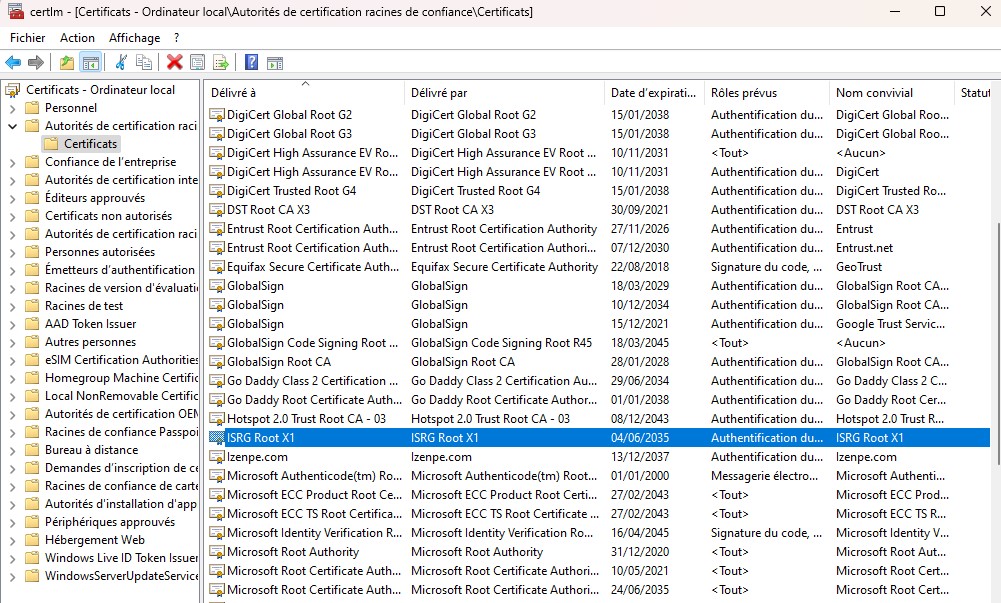
If your store does not match the window above, add the certificate:
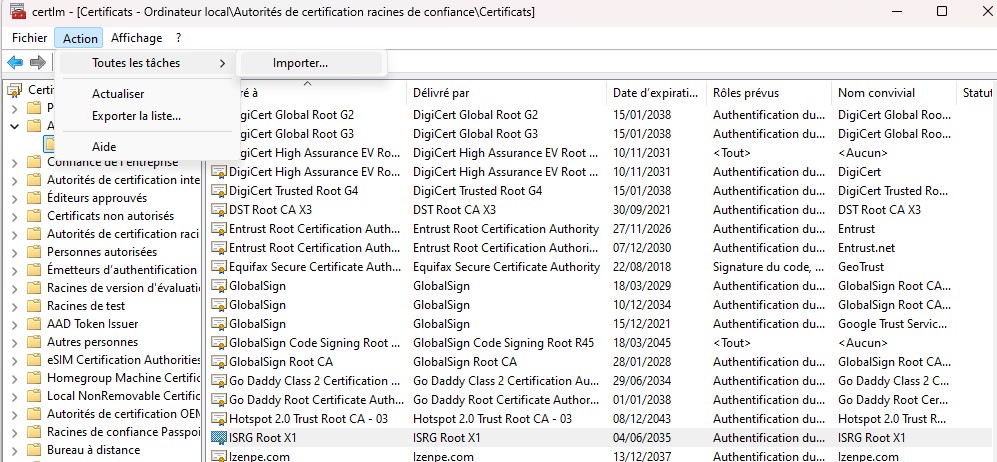
In the toolbar, go to:
Action > All Tasks > Import
In the wizard that appears, select “Local Computer” (these options may be grayed out).
Then select your file isrgx1.cer
And import it into “Trusted Root Certification Authorities”, as shown below:
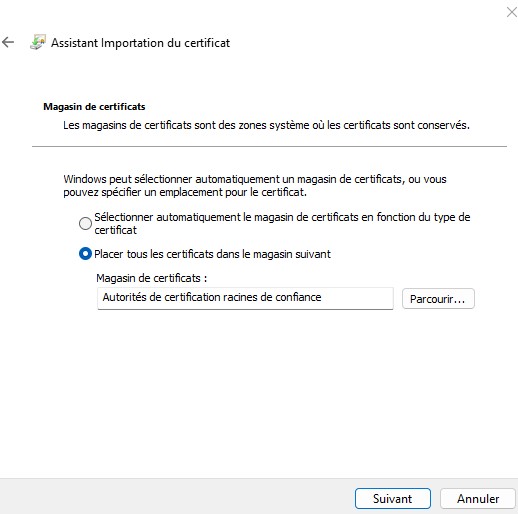
Restart the application and/or your browser and try again.
An “Invalid token id” without returning to login?
Check that the tablet is set to the correct time; a tablet with incorrect time will not be able to validate authentication.
Example: if the tablet is at 8:12 instead of 8:20, the mismatch will cause the Keycloak token to be rejected, hence the Invalid Token Id error
Windows Only
The application does not start on Windows (or closes immediately)
Open Windows Event Viewer > Windows Logs > Application and look for an error message related to “mcoach.exe”
If the problem is related to MSVCP140.dll
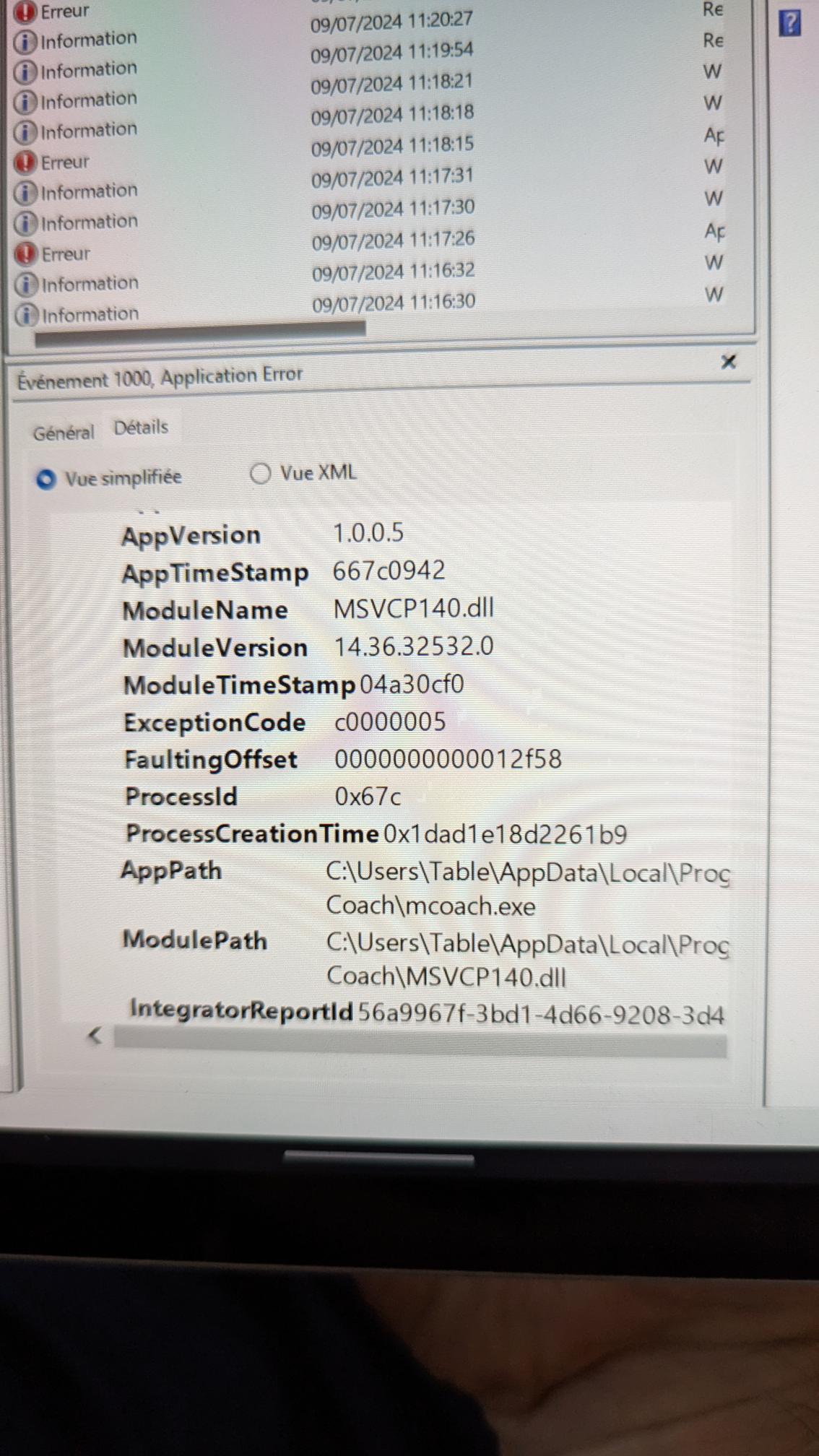
You may be missing a version of Microsoft Visual C++ Redistributable. By default, Maintenance Coach Windows includes the latest version, but on some devices it may be necessary to use an older version. In that case, you must:
download an earlier version from the Microsoft website, for example the 2017 version available here
delete the MSVCP140.dll file located in the application installation directory (you can find it in the event details under the ModulePath field)
restart the Maintenance Coach application
RFID
The Koamtac reader is not detected or no longer reads RFID
The reader may be stuck in an incorrect state; we recommend removing its battery and restarting it before trying again.
You may be missing a version of Microsoft Visual C++ Redistributable. By default, Maintenance Coach Windows includes the latest version, but on some devices it may be necessary to use an older version. In that case, you must:
- download an earlier version from the Microsoft website, for example the 2017 version available here
- delete the MSVCP140.dll file located in the application installation directory (you can find it in the event details under the ModulePath field)
- restart the Maintenance Coach application
RFD40 RFID Reader - UI Indicators
Decode LED Definitions
Good Scan = Green Led
Scan Error = Red Led
RFID Tag Read Indicator Enabled = Green Led
Read Error = Red Led